Below, I will explain per table how to extract records accordingly
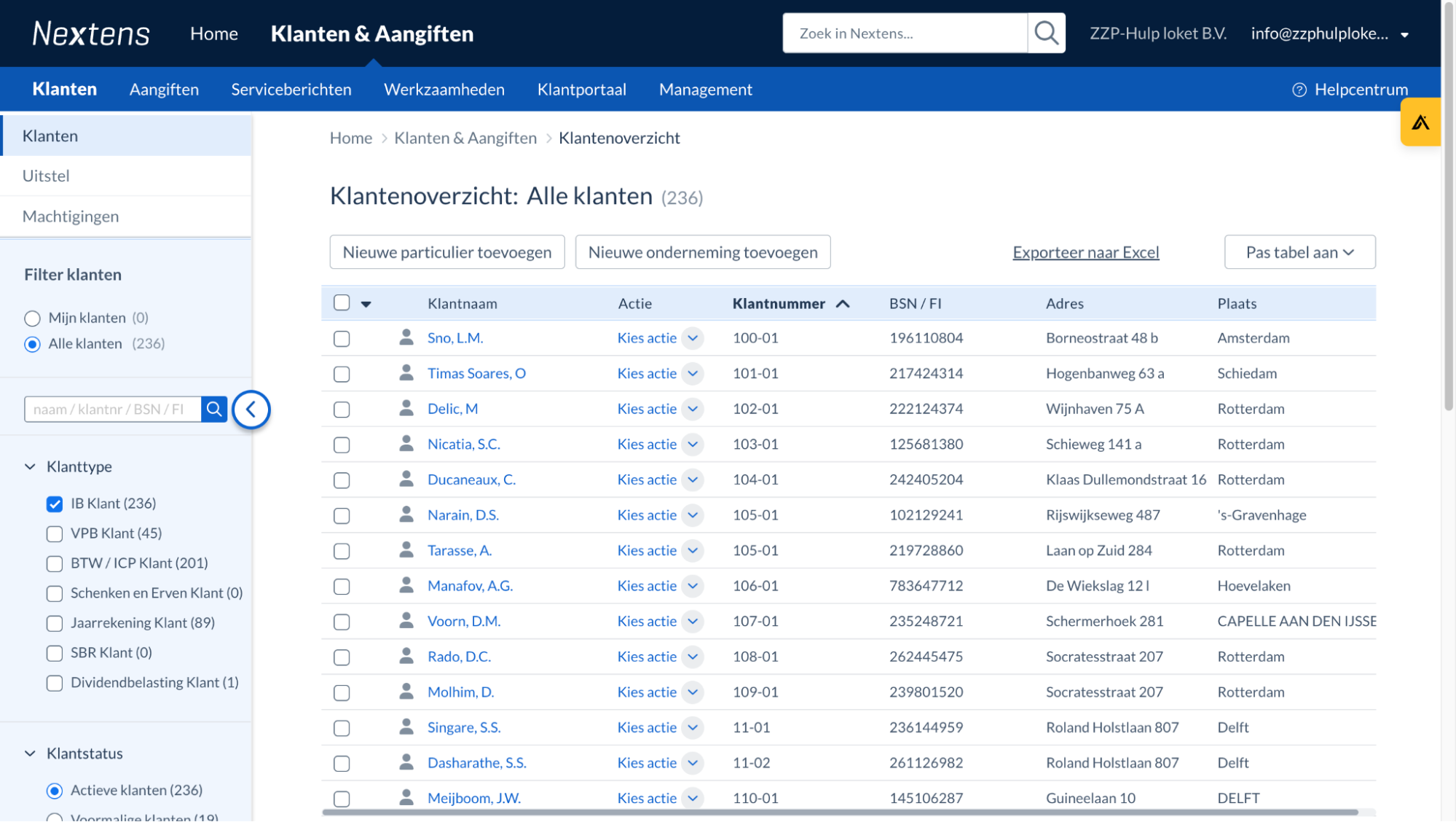
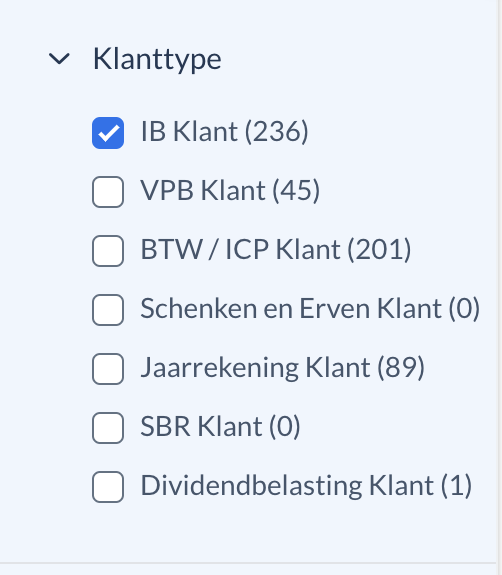
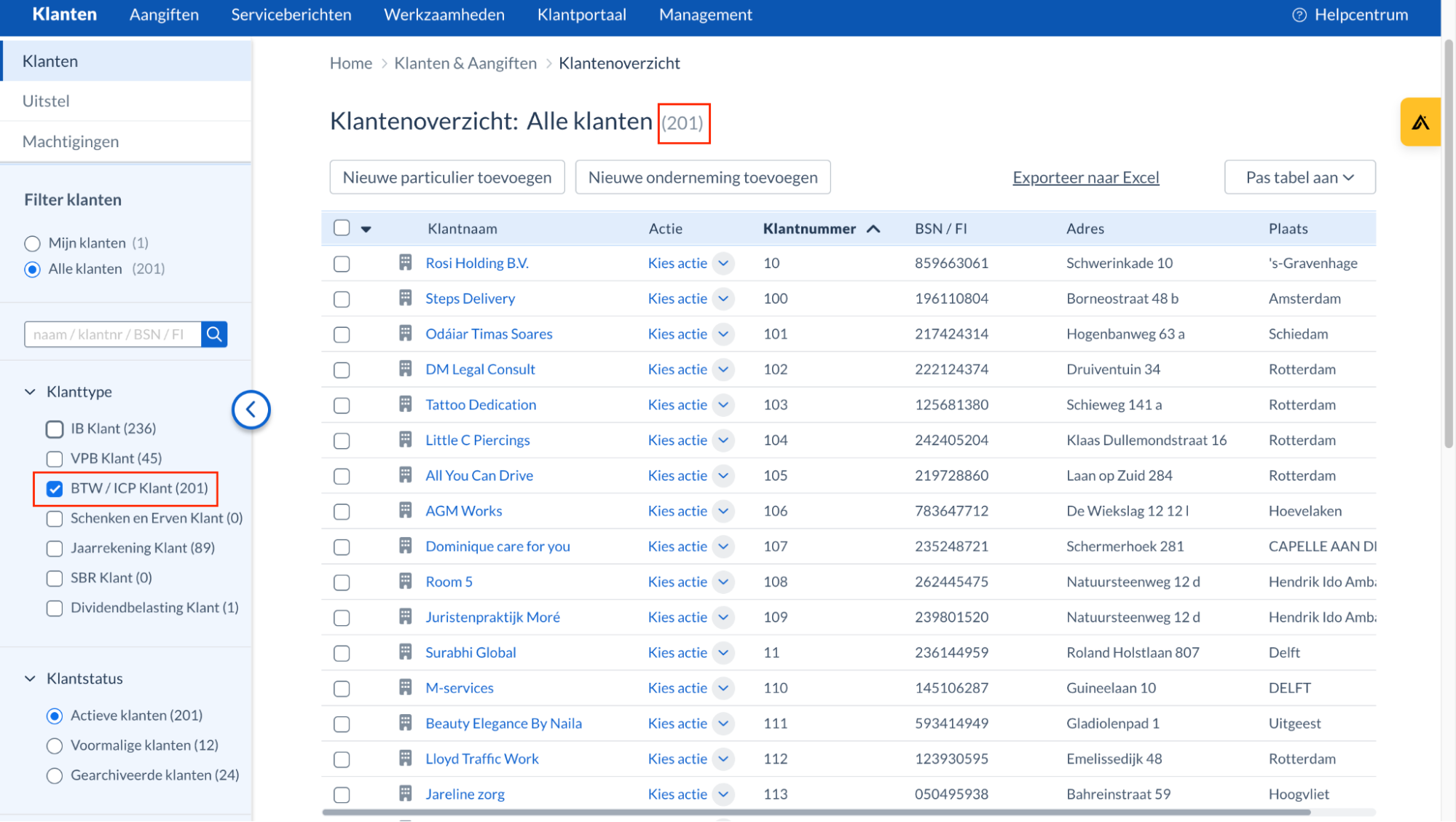
To start extracting records for this table, first we select the “BTW/ICP Klant” filter option on the left hand side, and only this option. Please make sure that number displayed at the top matches the number displayed in the left column.
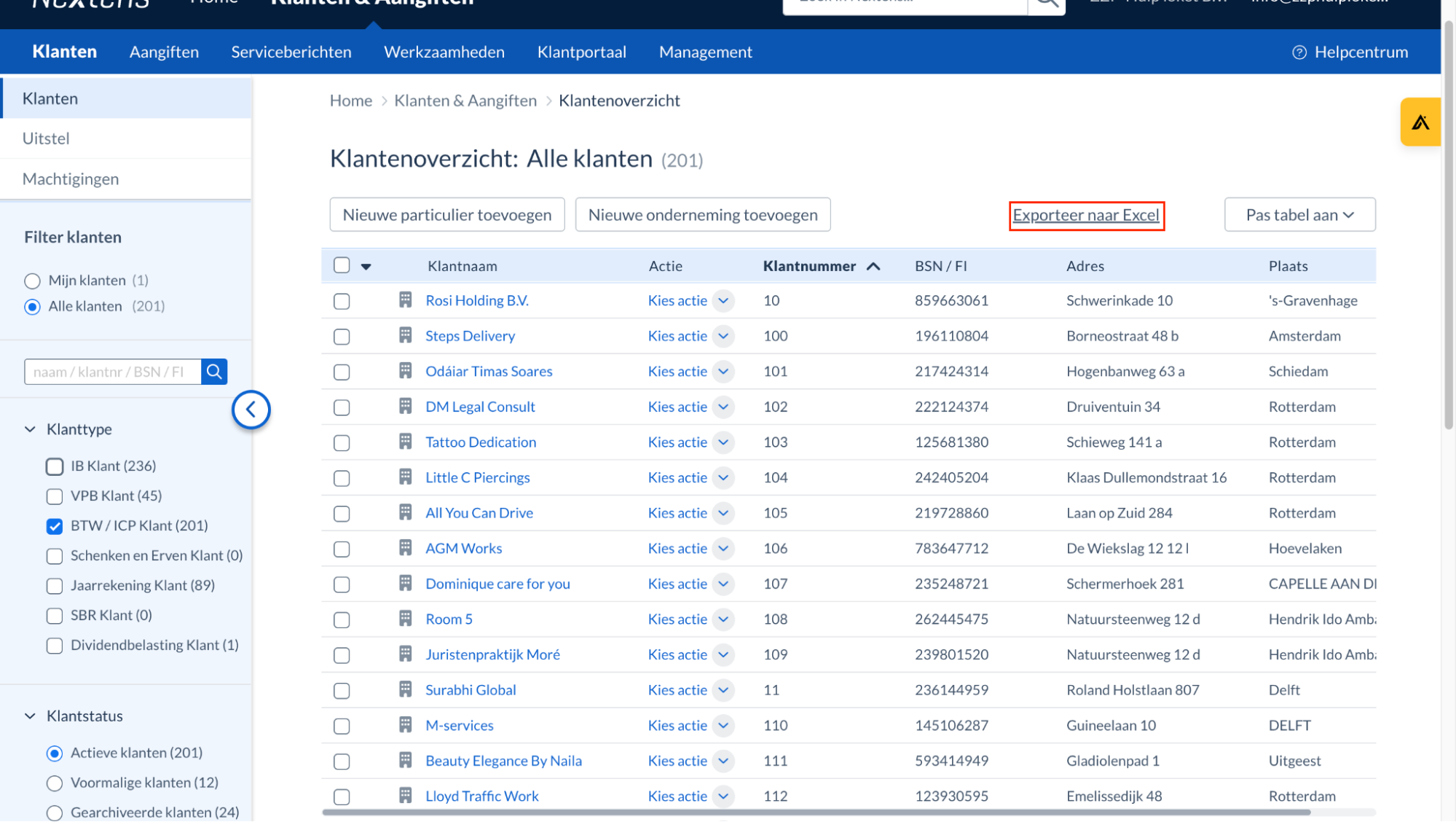
Next, without selecting any record, you will have to click on “Exporteer naar Excel”:
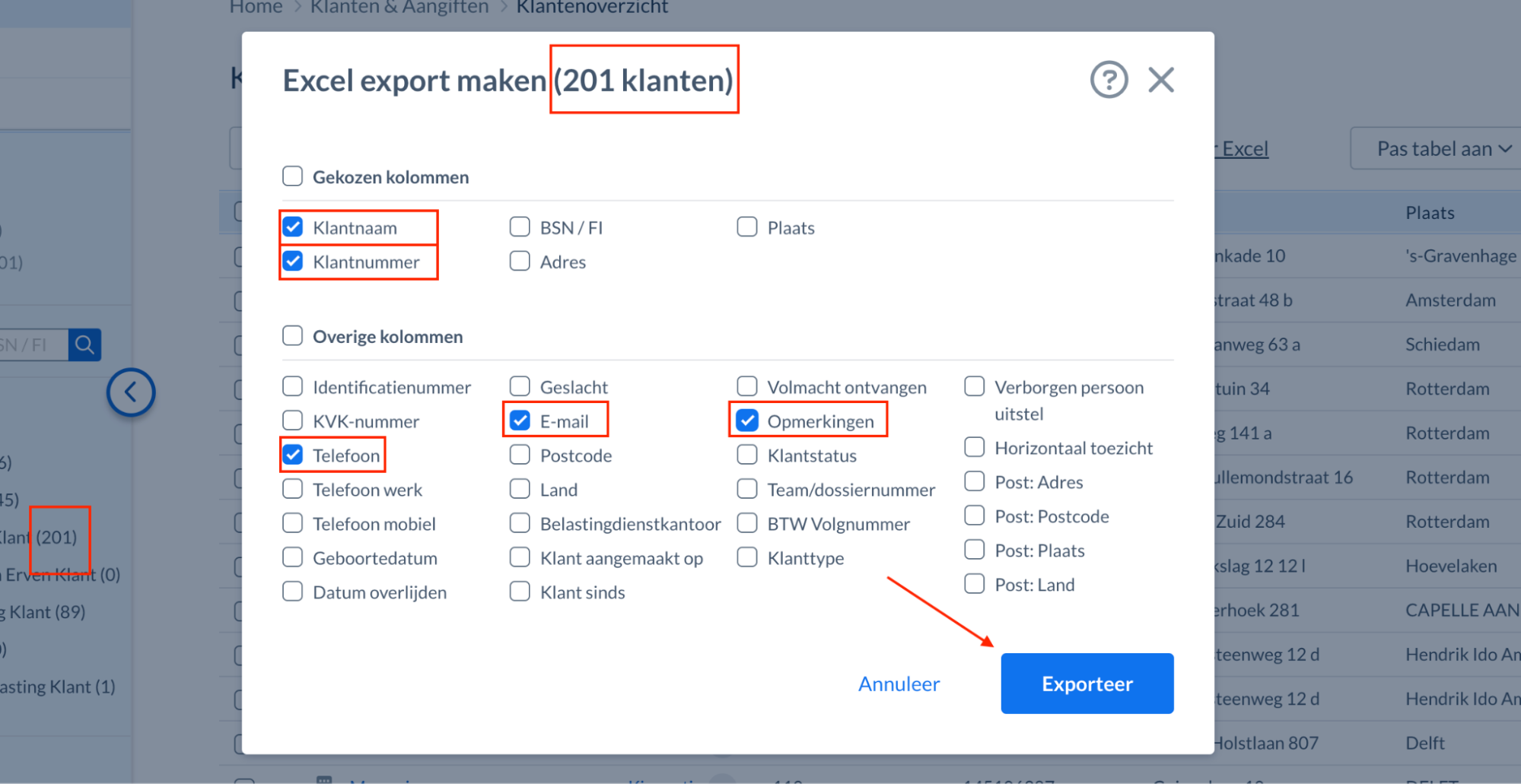
The following screen will appear:
Here, it is important to note a few things:
Make sure again that the number on the left corresponds to the number at the top. This ensures that all the records have indeed been selected
Next, please pay attention to the checkboxes which are selected here. When you first click on “Exporteer naar Excel”, several checkboxes will be pre-selected. However, just make sure the five checkboxes which are highlighted in the image above are actually selected. This means that any checkboxes which might be pre-checked, can be un-checked.
Once you have verified the details above, you can hit “Exporteer”
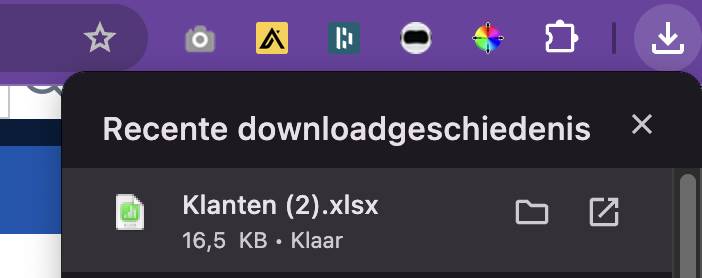
The File will download automatically and appear in the top right corner under downloads.
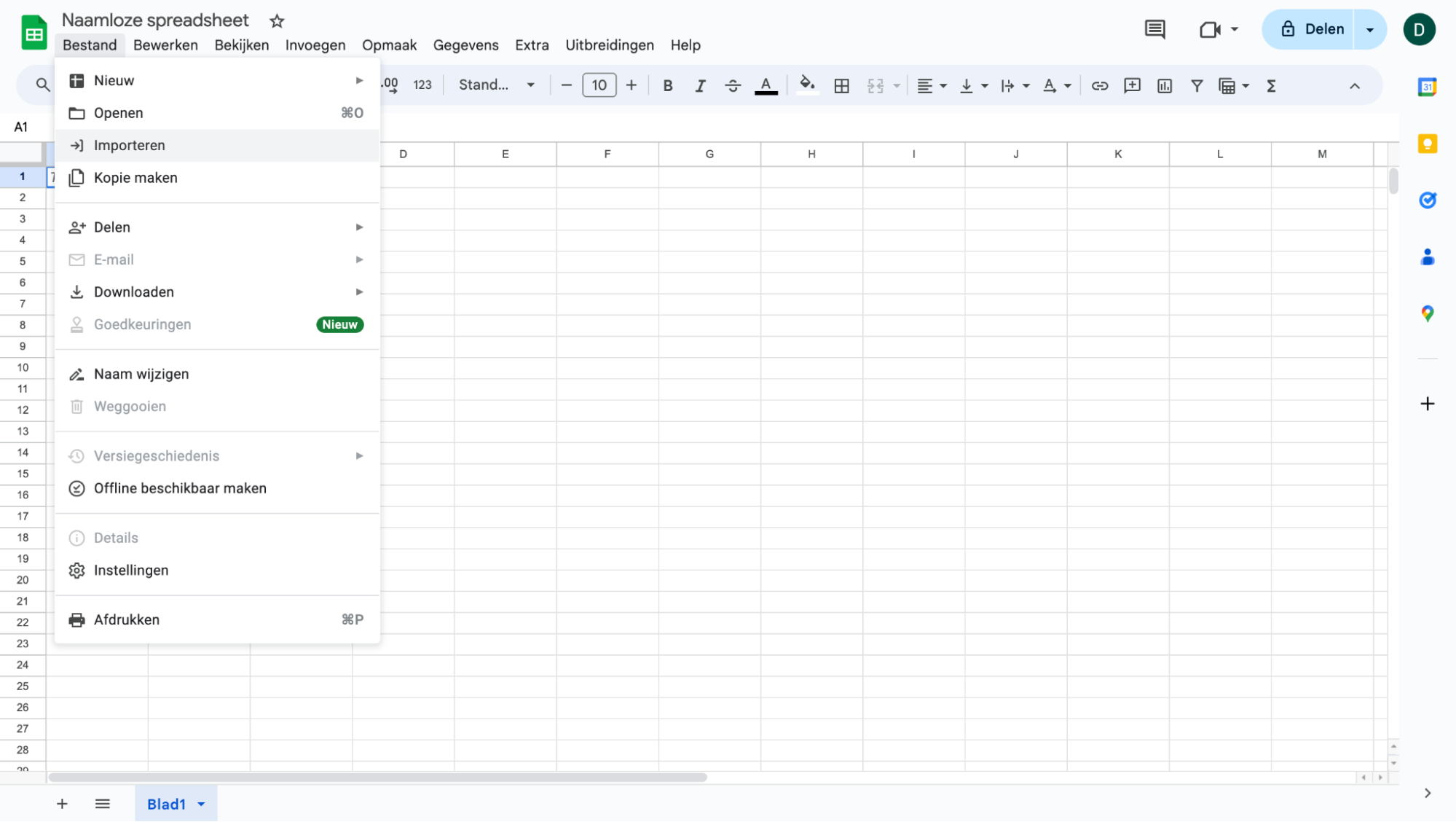
Open a new spreadsheet file and go to import:
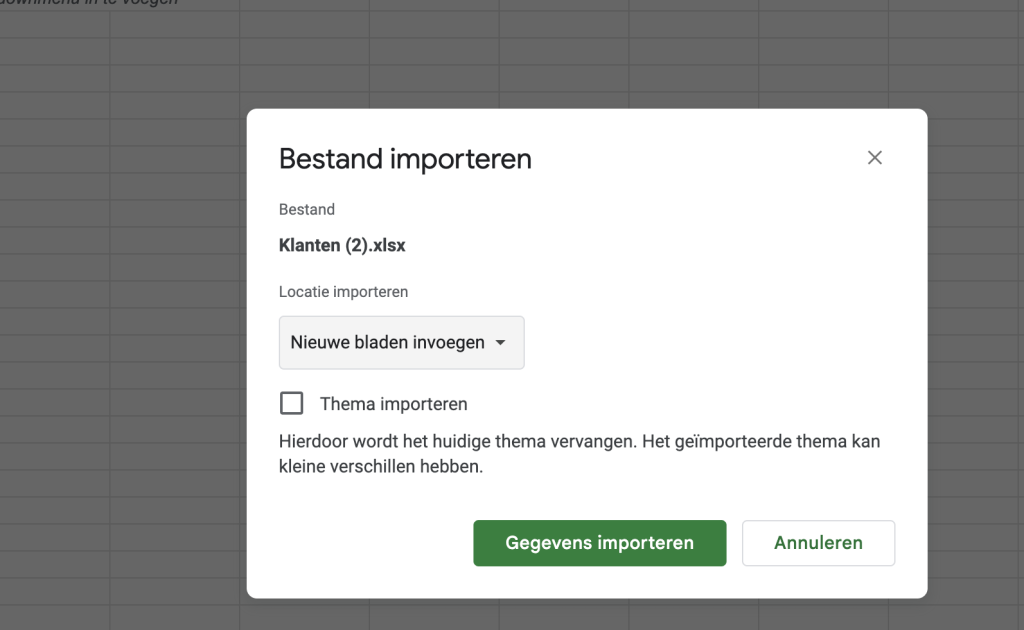
Selected the newly downloaded file called “Klanten ((XX)).xlsx” and make sure to select “Insert new sheet”. Then select the green “Import data” button.
This will automatically create the correct layout needed for the following step
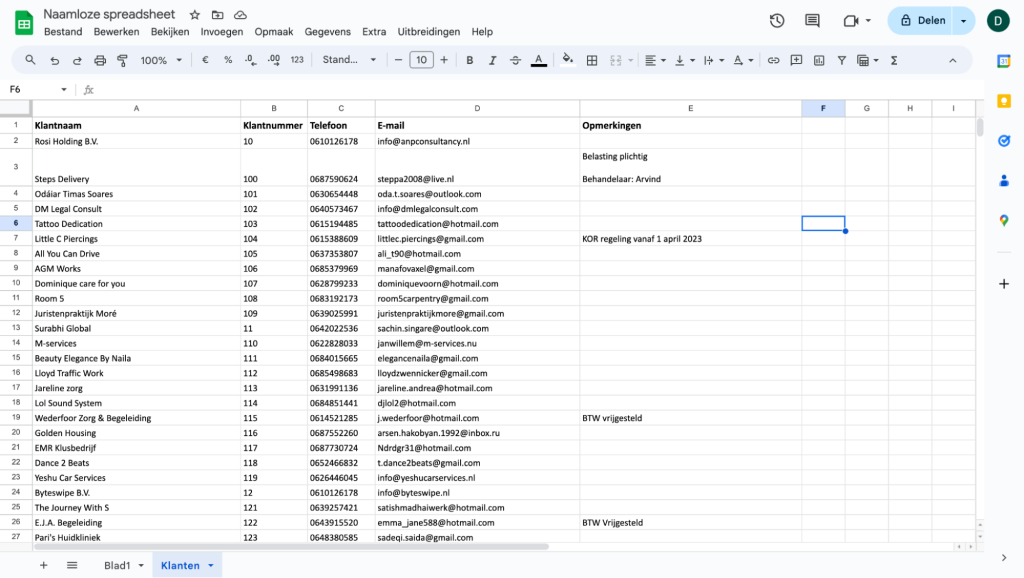
The sheet should be appearing as following:
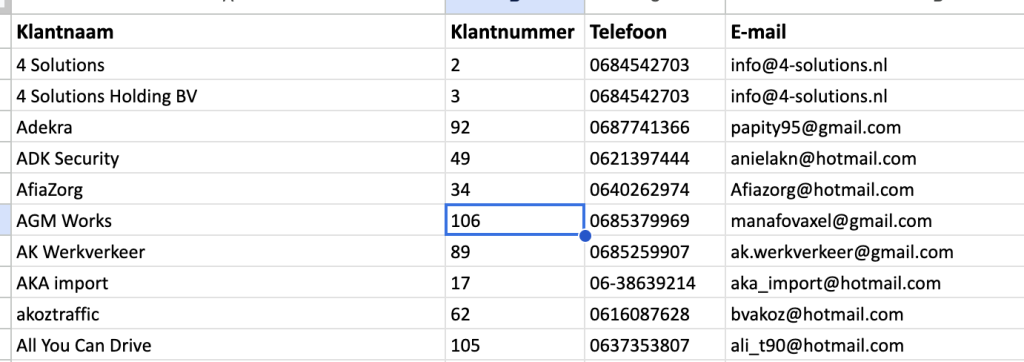
To have a better overview, select the “Klantnaam” column and select “Sort A-Z”. Please note that the first row is a header row and will also be sorted accordingly. Copy and cut the first row before actually sorting. After that, paste the row back on top.
After sorting, the first column should be alphabetically sorted.
Omzetbelasting Vrijgesteld Table
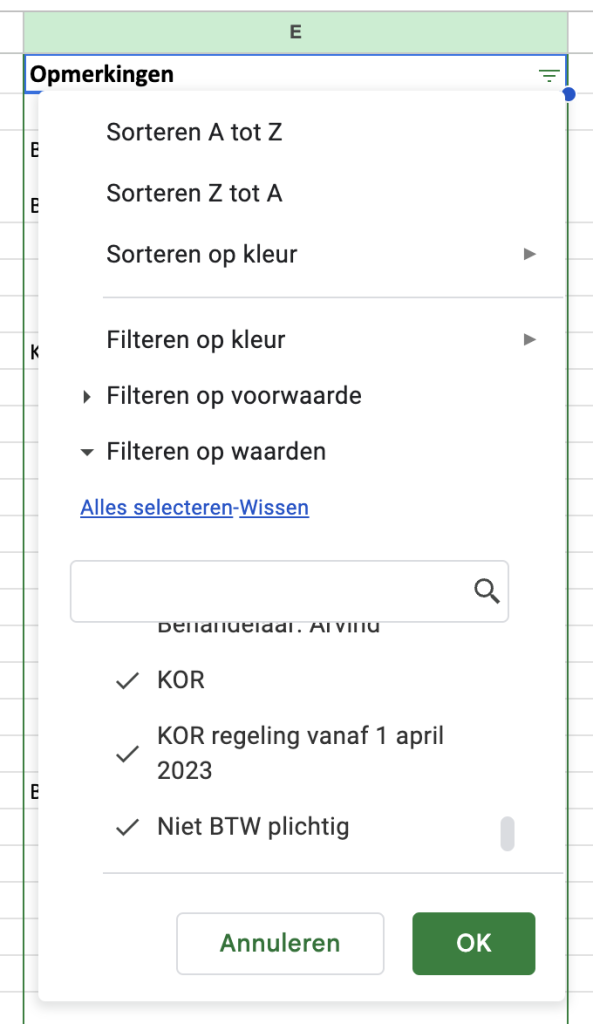
To immediately tackle the “Omzetbelasting Vrijgesteld” table, we must insert a filter in the most right column called “Opmerkingen”. Here, we will select the following filters:
Any filter with any of the following words:
KOR
Niet BTW Plichtig
BTW Vrijgesteld
Don’t pay attention to any of the other filters or the extra description which might be there. As long as you select the filters with the above words, you will be good.
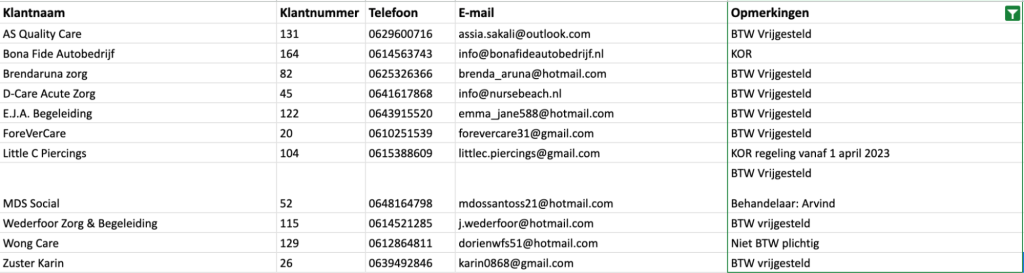
As you will see, once the filter is applied, only a handful of records will be left.
Next, you will select all of the cells and copy them to a new sheet as following:
As seen in the video, once the cells have been pasted in the new sheet, just delete the cells in the original sheet.
Now we have separated the Omzetbelasting Table and the Omzetbelasting Vrijgesteld table.
Next, we will clean up the initial sheet:
Now we will need a sheet or document from the records which are currently in the portal. You can either use the sheet from the previous day, or extract the data directly from the portal.
This data will be used for comparing data between the newly extracted records, and the already present records.
This is a simple tool which allows you to compare 2 lists. In this example, I am using a test list and the list we just exported from Nextens. I will go step by step in the following video to show what that would look like:
On Listdiff, you can see the results. In the A list, we used the newly extracted records, in the B list, we used the “current” records in the portal.
This means that the A Only results, mean that these have to be added to the portal.
And the B Only results, have to be removed from the portal as they are not present in the new file
When we go back to the sheet, we will search the A only results. There we can see the entire records and it’s details:
And the results from the B Only list have to be deleted from the record.